目录
In modern digital workplaces, efficiency has become one of the most important factors influencing productivity and creative output. Designers, editors, engineers, and content creators are constantly looking for tools that reduce unnecessary steps and improve interaction speed. One of the most impactful innovations in this area is the Touch Display, which allows users to interact directly with digital content through touch and stylus input. Replacing indirect navigation methods with direct manipulation, it helps streamline complex workflows and reduces friction in everyday tasks. But what specific problems does it solve in workflow efficiency? The following sections explore its key contributions in detail.
Reducing Time Lost in Navigation and Tool Switching
One major workflow issue in digital environments is the constant switching between tools, menus, and input devices. A Touch Display helps reduce this inefficiency by simplifying interaction.
- Direct access to tools and objects: Users can tap, drag, and adjust elements instantly without moving a cursor across multiple interface layers.
- Faster zooming and navigation: Pinch-to-zoom and swipe gestures eliminate the need for repetitive menu actions or scroll wheel usage.
- Minimized device switching: Many actions that previously required keyboard and mouse can now be completed on-screen, reducing interruptions.
- Improved visual focus: By interacting directly with content, users spend less time searching for controls and more time executing tasks.
This reduction in navigation overhead significantly speeds up daily workflows, especially in design and editing tasks.
Improving Editing Speed and Real-Time Adjustments
Another common workflow problem is the slow iteration process in creative and technical editing. A Touch Display addresses this by enabling faster adjustments.
- Instant object manipulation: Users can move, resize, or rotate elements directly, making adjustments more immediate and intuitive.
- Faster feedback loops: Changes are visible in real time, allowing quicker decision-making during editing sessions.
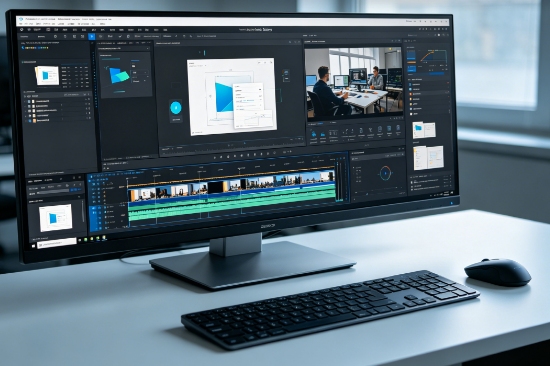
- Simplified timeline control: In video and animation work, scrubbing and trimming become more fluid and precise.
- Reduced repetitive actions: Common edits like layer adjustments or brush changes require fewer steps, improving overall speed.
These improvements help creators complete revisions faster and maintain momentum throughout their projects.
Solving Precision and Control Challenges
Workflow inefficiency often arises from a lack of precision, especially when using indirect input devices. A Touch Display improves control in several key ways.
- Enhanced stylus accuracy: Pressure-sensitive input allows fine control over brush strokes, line thickness, and shading.
- Pixel-level editing capability: Users can zoom in and make detailed adjustments directly on-screen without losing accuracy.
- Better alignment control: Direct manipulation of elements helps ensure precise placement and spacing in design layouts.
- Reduced input errors: Touch-based selection reduces misclicks commonly caused by mouse navigation.
By improving accuracy, the Touch Display helps reduce rework and correction time, leading to smoother workflows.
Enhancing Multitasking and Workspace Organization
Modern workflows often involve multiple applications, references, and tools running simultaneously. A Touch Display helps solve multitasking inefficiencies.
- Split-screen usability: Users can view reference materials, editing tools, and active projects side by side.
- Faster window switching: Gesture controls allow quick transitions between applications without keyboard shortcuts.
- Improved visual organization: Touch-based rearrangement of windows and assets helps maintain a cleaner workspace.
- Real-time collaboration support: Teams can annotate and adjust content together during meetings or reviews.
These features help reduce cognitive load and improve overall task coordination in complex projects.
Addressing Fatigue and Workflow Interruptions
Another often overlooked problem in workflow efficiency is physical fatigue and mental interruption. A Touch Display helps mitigate these issues when used correctly.
- Reduced repetitive mouse movement: Direct interaction lowers the strain caused by continuous cursor control.
- Simplified task execution: Fewer steps are required for common actions, reducing mental switching between tools.
- More intuitive interaction flow: Natural gestures help maintain creative rhythm without frequent breaks in concentration.
- Flexible usage modes: Users can switch between touch, stylus, and keyboard input depending on comfort and task type.
However, it is important to note that improper ergonomics may still lead to fatigue if used for long sessions without breaks.
Conclusion
In conclusion, a Touch Display helps solve multiple workflow efficiency problems by reducing navigation time, improving editing speed, enhancing precision, and supporting better multitasking. It also minimizes interruptions and simplifies interaction, allowing users to focus more on creative and productive tasks rather than technical controls. While it does not completely replace traditional input devices in every scenario, it significantly improves overall workflow fluidity. For designers, editors, and professionals working in visually intensive environments, it serves as a powerful tool for optimizing efficiency and reducing unnecessary workload friction.
0